Tutorial: How Does the Raysync File Sync Function Work?
November 12, 2025.png)
File synchronization (file sync) is a method of keeping files that are stored in several different physical locations up to date.
File synchronization software is used to store copies of on-premises data to another device or to the cloud. The files are typically available to be accessed via a Web-based portal.
In this article, we will guide you on how to sync file via the Raysync user portal.
-
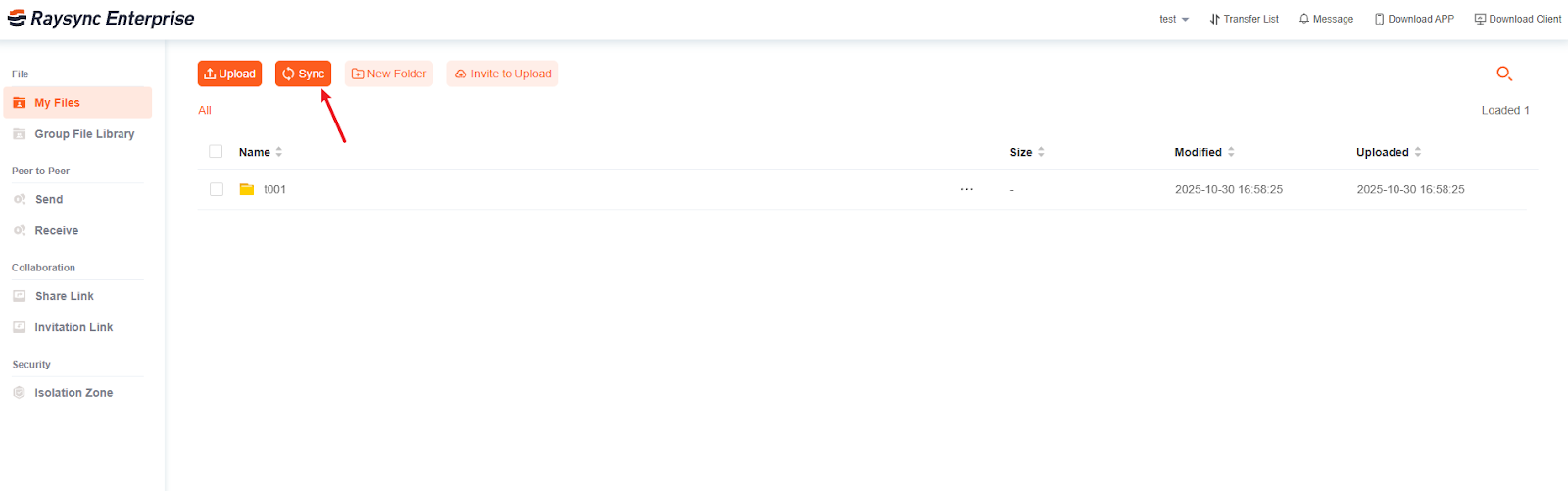
Click the "Sync" button.
-
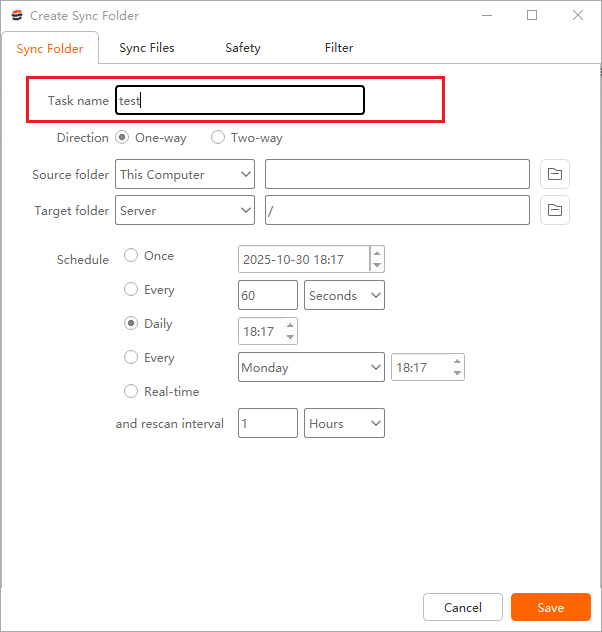
Fill in the sync task name in the sync setting box, such as "test".
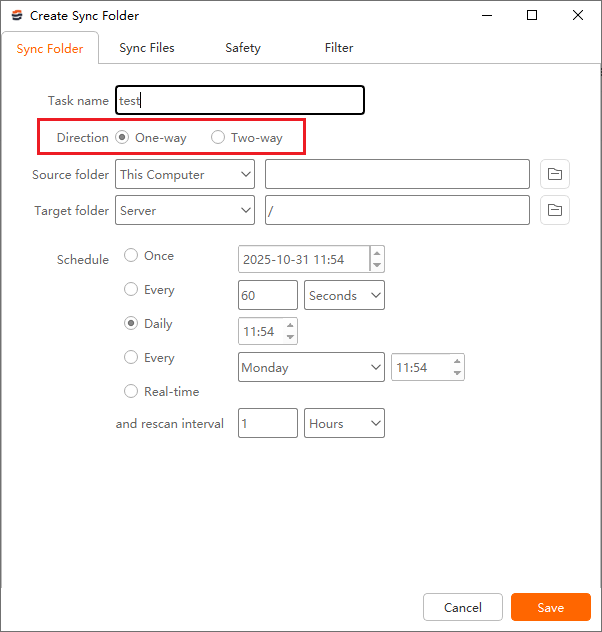
3. Choose the transfer direction:
-
One-way: Transfers files solely from the source path to the destination path; changes to the destination path will not be transferred to the source path.
-
Two-way: Uploads first, then downloads; files from the source path are transferred to the destination path, and files in the target path will also be transferred to the source path.
4. Select the source folder path to be synchronized.
Upload: The source path is this computer. Download: The source path is Server. Click the "Preview" button of the source path, select the folder you want to upload or download.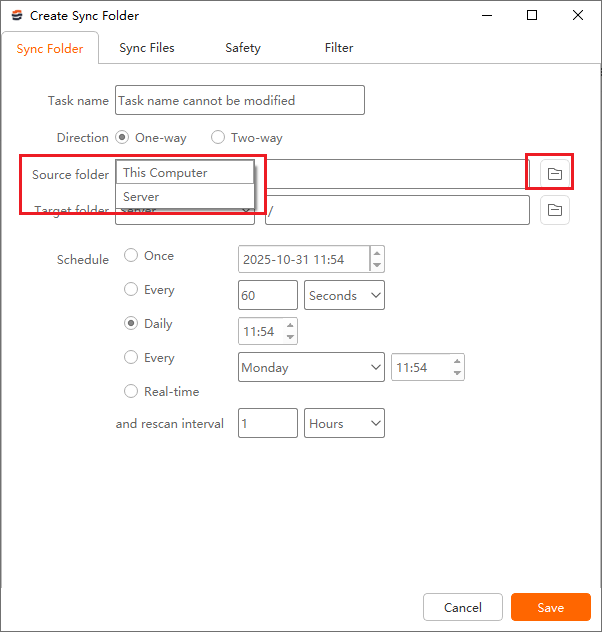
5. And then click the "Preview" button of the target path, select the directory you want to sync to.

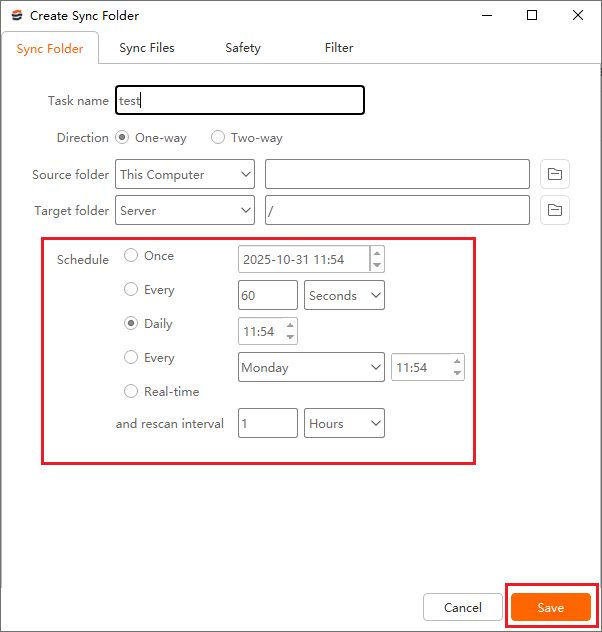
6. Then select the synchronization frequency
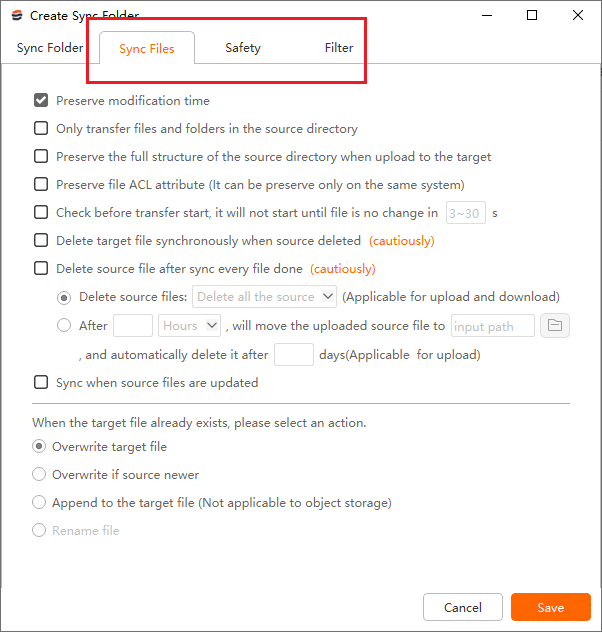
7. Other menu bars allow you to configure file processing, transfer encryption, and filtering.
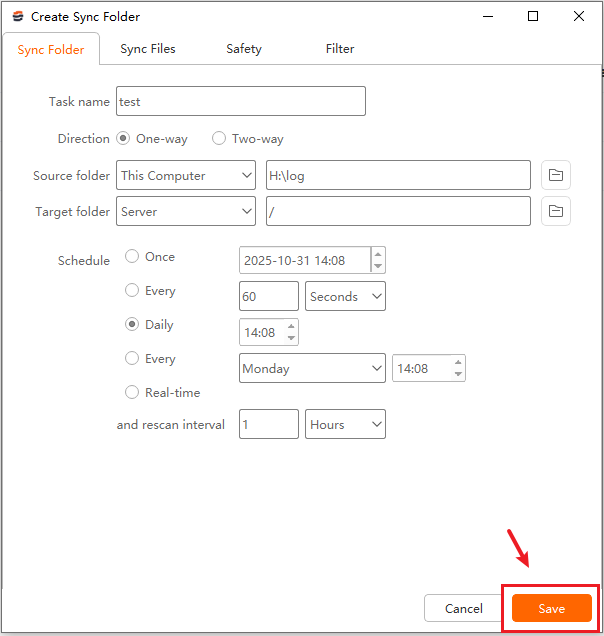
8. Click to "Save" to create the sync task.
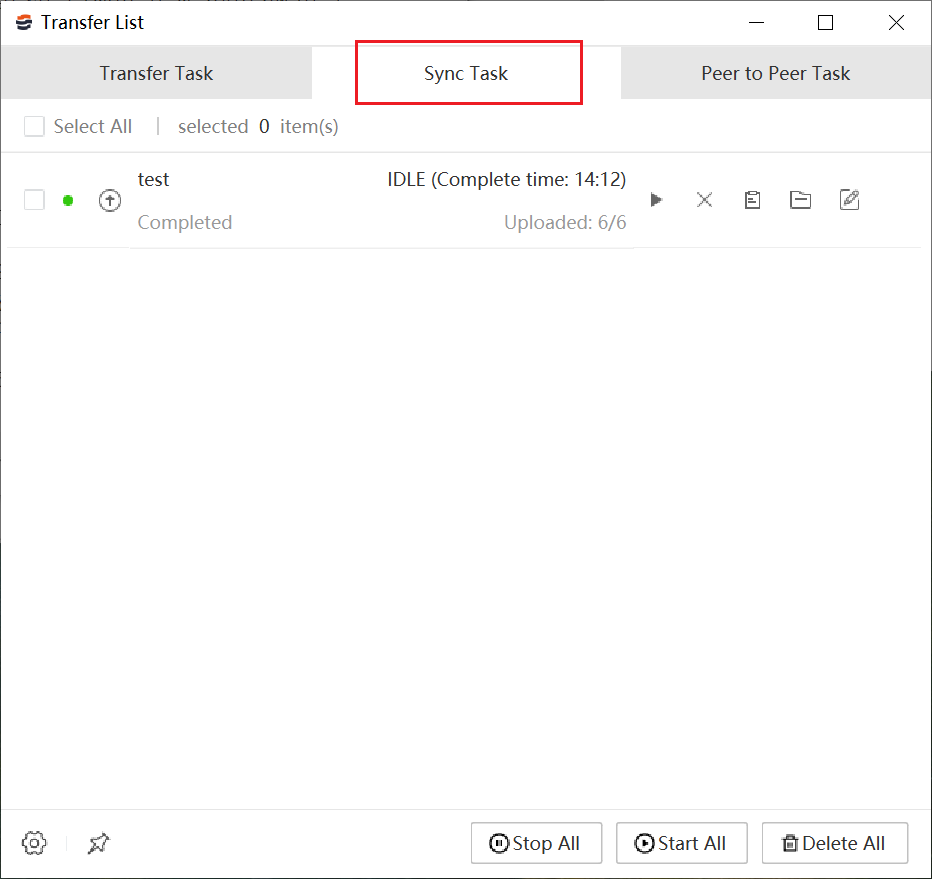
You could check the process of the sync task in "Transfer List" – "Sync Task" of the Client plugin. When the task reaches the synchronization time, your directory will be automatically transferred.
You might also like

Industry news
March 7, 2025Rsync automatic sync is handy, but are you maximizing its potential? Get tips for smoother, faster syncing.
Industry news
May 18, 2026Single-channel TCP wastes 90% of 10Gbps bandwidth. See how Raysync Multi-Channel Transfer delivers 6× throughput with zero infrastructure changes.
Industry news
July 2, 2025Discover the stages, tools, and tips to optimize your VFX pipeline for smooth, high-quality visual effects production from start to finish.